You can update the résumé attached to your SkillMarket profile even after your profile has been completed and approved.
Update Your Résumé
- Sign in to SkillMarket and open your profile.
- Select Edit Profile.
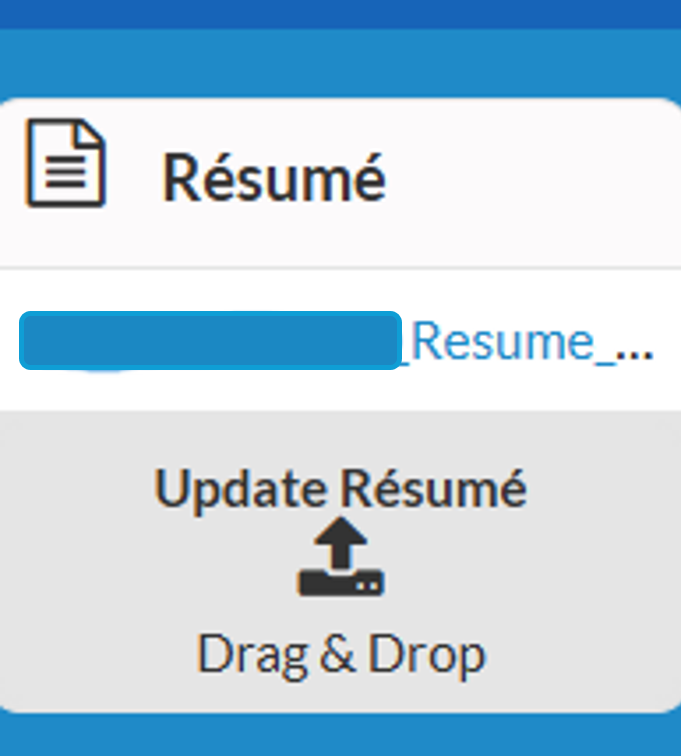
- Find the Résumé section.
- Under Update Résumé, select the upload option to choose a new résumé file, or drag and drop the file into the upload area.
- Confirm that the new résumé has uploaded successfully.
- Select Save Changes before leaving the page.
Important: Uploading the file alone does not complete the update. Be sure to select Save Changes to save the new résumé to your SkillMarket profile.
Still Need Help?
If you're unable to upload or save your updated résumé, submit a SkillMarket Support ticket and include:
- The step where the issue occurred
- The browser and device you're using
- A screenshot of any error message
Do not include passwords, verification codes, government identification numbers, identification images, or other sensitive personal information in your ticket.
Was this article helpful?
That’s Great!
Thank you for your feedback
Sorry! We couldn't be helpful
Thank you for your feedback
Feedback sent
We appreciate your effort and will try to fix the article